Thursday, December 1, 2011

Release 2011-11-30: Improved graphs and Move Strategy

Improved graphs in PlanBase Scorecard bring a new level of visual management to performance measurement:
  • Green, yellow, and red background shading highlights on-track, behind-plan, and off-track performance over time.
  • Click on any graph to display a full-size version suitable for presentations, printing, or copying to other applications outside of PlanBase Scorecard
As another improvement, you can now move strategies around when building or modifying a plan in PlanBase Hoshin. Easily undo a move if you change your mind. This feature enables you to:
  • Move an objective/strategy to a different part of a plan
  • Combine one plan into another
  • Promote an objective/strategy to its own new plan.
Existing customers can access ShowMe learning modules on these new features.

Inquire today about how PlanBase Hoshin and PlanBase Scorecard can elevate your planning and process improvement!

Wednesday, October 5, 2011

Release 2011-10-05: Scorecard CSV

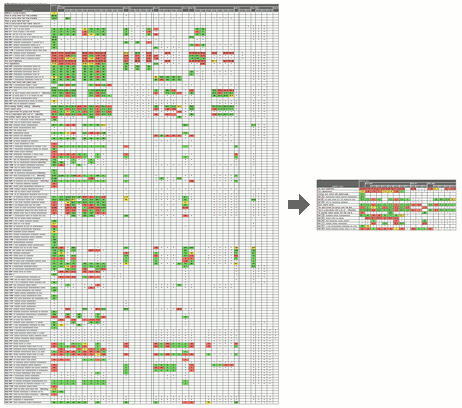
A new entity spreadsheet download (opens in Microsoft® Excel® or other spreadsheet application) shows a rolling 15 months of data (same as the Entity view screen) for every metric in an entity and its immediate sub-entities. Like the Heat Map screen, it shows two levels of entities. The CSV file format is easily machine-readable and should be compatible with most spreadsheet-type programs. This spreadsheet download can be used for "slicing and dicing" or reporting on data in the system or as a reverse of the Batch Data Load process.

Tuesday, September 6, 2011

Easier Password Reset

  • Users can now reset their own passwords if they lose them, so long as they have set up a secret question for their account. A new column on the Users screen shows super-users who has and has not set up their secret question.
  • The Plan Status screen can show the email address of every owner of every item displayed on that screen. Just click the little blue, show their email addresses link next to the Email link below the Report Settings box.
  • A new Reset button on the Users screen allows super-users to unlock a user's account and email them a new randomly-generated password with just two clicks; one on the Reset button next to the person's name and one on the "Are you sure?" dialog that pops up to confirm the email address.
  • The Add User screen has been streamlined so that a super-user can supply an email address, check off the necessary permissions, and the rest of the screen fills itself out. When the super-user clicks Submit, the system now emails the new user the necessary login information.
  • The system provides a randomly-generated temporary-password suggestion when a super-user changes someone else's password or adds a new user.
  • A new Increase User Limits screen allows the application manager to increase their limits without picking up the phone or typing an email.
  • If you have not changed your password since February 27th, you will be forced to change it the next time you log into the system. This manual password change is the only way to activate the security benefits of the 2011-02-28: Pareto Analysis release.

Saturday, July 16, 2011

Improved Tactic Review

Tactic Review Screen showing description, dates, and past performance
The improved Tactic Review screen shows the tactic description, dates, and past performance. It also warns you if you try to update a tactic outside the dates you had planned to work on it.

We also now display a count of users vs. the total number of licenses you have on the Users screen. If you are at or over your limit of licensed users, or you wish to increase your limit, your Application Manager knows how to purchase more.

Monday, May 9, 2011

Release 2011-05-09: Data Subsets

Scorecard Improvements

  • "Metric Subsets" have been renamed, "Data Subsets" because in addition to picking metric types, you can now choose your favorite sub-entities. This facilitates a greatly pared-down Heat Map, Metric Contributors, and Variance Analysis (when you add a Pareto analysis on the Process Review screen).
  • The Heat Map screen now has a Show Targets button to display targets as well as actuals. When not showing targets you can still hover over an actual value to see the target, units, and what-is-better (more/less/closer).
  • When showing targets, the Heat Map screen now shows a label indicating which row is actual and which is target.

Focus reviews with data subsets

Businesses commonly track a large number of metrics on their scorecards, but individual leaders need to focus their reviews on the subset of data most meaningful to them. PlanBase Scorecard lets you define subsets of the metrics and sub-entities most essential to you for a more concentrated view of every Scorecard screen, but particularly of the Heat Map screen.

Use a subset by selecting it in the Data Subsets drop-down tab in the top navigation section of any Scorecard View screen. Selecting a data subset is sticky - it stays selected when you navigate between the Scorecard View screens. To view all metrics and entities again, select *All Data* from the same drop-down, or click a link in the left-hand navigation pane, or edit something on the Entity View screen.

Friday, April 15, 2011

Release 2011-04-15: Shared Objectives and Strategies

Have you ever wanted to repeat an existing objective or strategy in the same plan or copy it to another plan? With the newest release of PlanBase Hoshin, you can easily share an objective or strategy within the same plan or with a completely different plan. There is no limit to the number of times you can share a single objective/strategy. When you click on the shared objective or strategy, you will be viewing the original and its performance metrics and supporting tactics. If reviews have been completed on the original, you will also see the detail of the review. Users require access to view the original plan and strategy/objective to see this level of detail.

Below are additional notes on how to effectively share objectives/strategies:

  • To set up a secondary strategy you must be able to edit the parent objective and view the plan of the child strategy. The Application Manager may be the only one who can set up some associations.
  • Adding a secondary strategy to another plan makes that strategy visible in much the same way as associating a strategy with a process makes it visible on Scorecard. Only people who can view the original plan can see the description of the strategy in its secondary places. Others can see the number, owner, status, and reviews, but not the text of the secondary strategy. Making a secondary strategy never reveals sub-strategies, tactics, or ancestors of the secondary strategy.
  • The objective/strategy keeps its original number.

Still need more help with this new feature? View the new "Show Me" video clip feature available in PlanBase Hoshin.

Another change you will notice in this release is the addition of a field for "Strategy Tag" in the CSV download.

Friday, March 11, 2011

Release 2011-03-11: X-Matrix

PlanBase X-Matrix
Companies that choose to enable it can now view their Hoshin plans as an X-Matrix report. The X-Matrix is another way of presenting the information already in the system as a chart of the objective, strategies, metrics, supporting strategies, owners, and their relationships around a central box, the "X." In the PlanBase version coloring in the chart helps your eye follow the information in the chart around the corners of the box. Plan entry and reviews are still done in the regular Plan and Review views.

Read about Your Custom X-Matrix in PlanBase on our web site.  Please contact us if you are interested in a demo.